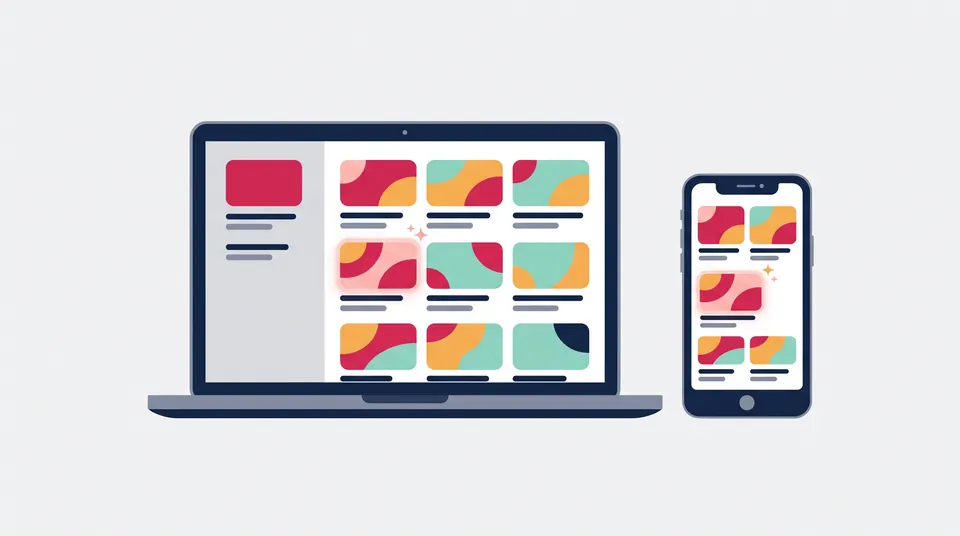
YouTube thumbnail preview and A/B tester
Compare two or three thumbnail ideas before you upload: side by side in the same card, shuffled among other videos, flipped in one spot and at small size, in light and dark colours.
Thumbnail A/B tester
Compare your thumbnails
Your versions
Your candidates become A, B and C. One works too: you'll see it in a feed. They are shown on this device and never uploaded. The quick checks follow YouTube Help, checked 20 November 2026.
Need to check the size or export at 1,280 × 720? Use the thumbnail size checker.
Video details
Up to 100 characters, the YouTube limit. Most feeds show two lines.
Empty fields use the video title. Change titles or thumbnails, not both at once, so you know what made the difference. To test titles only, add the same thumbnail twice.
Like 8:05 or 1:02:45. Leave it empty to hide the badge.
Compare in a feed
Add a second thumbnail to compare: side by side, shuffled into the feed or flipped in one spot with Blink.
Your pick is one opinion, not a prediction of clicks. Ask a few people who watch your videos, then let YouTube's Test & compare decide with real viewers.
The preview is a generic video feed that approximates common layouts and sizes. It isn't YouTube's interface, which looks different in its details and changes with the screen size. Livecounts.nl is not affiliated with YouTube or Google.
Small-size comparison
Every version 168 px wide, roughly the size in compact lists such as suggested videos (an estimate: real sizes vary by screen). If you can't read it here, simplify it.
Add thumbnails to compare them at small size.
Light feed
Dark feed
Grayscale shows whether text and subject still stand out without colour; Blurred is a quick squint test.
How to compare YouTube thumbnails
- Choose, drop or paste two or three thumbnails. They become A, B and C.
- Type your title and channel name. To test titles too, give each version its own title.
- Pick a layout and feed colours, then compare with Side by side, Shuffled feed or Blink, which flips one spot between your versions.
- Look at the small-size comparison in Normal, Grayscale and Blurred.
- Run the gut check: five shuffled rounds with the labels hidden, picking the video you'd click first.
Advertisement
How to compare thumbnails fairly
- Change one thing at a time. Text or no text, a face or an object: when versions differ in one way, you learn what made the difference.
- Keep the title the same. Compare thumbnails under one title, then test titles separately.
- Look small and fast. Most viewers see a thumbnail small, for a moment, while scrolling.
- Move it around. A thumbnail can stand out next to one video and blend in next to another, so shuffle a few times and check both colour modes.
- Ask other people. Your pick is one opinion. Download the comparison and show it to a few viewers.
What makes a thumbnail readable at small size
- Few, big words. Small text is the first thing to blur, so use a few large words or none and let the title explain.
- One clear subject with space around it reads faster than a busy scene.
- Strong contrast. In Grayscale, text and subject should still stand out from the background.
- A clear corner. The video length badge covers the bottom-right corner, so keep text and faces out of it.
How YouTube's own A/B test works
Test & compare in YouTube Studio tests up to 3 titles and thumbnails on one video, on a computer only, and picks the version with the highest watch time share rather than the most clicks. If any test thumbnail is below 1,280 × 720 pixels, all of them are shown at 854 × 480, so keep every version at least that size. A preview can't tell you which one will win; it helps you choose which versions are worth testing.
Sources, checked 20 November 2026: YouTube Help, A/B test titles & thumbnails; Add custom thumbnails on YouTube, for the quick checks (16:9, at least 640 px wide, JPG or PNG, 2 MB from a phone and 50 MB from a computer); and Edit video settings, for the 100-character title limit. For a full size check and a 1,280 × 720 export, use the YouTube thumbnail size checker.
Your images stay in your browser
Your thumbnails, channel picture, titles and channel name are shown by your browser on this device. Nothing is uploaded to Livecounts.nl or anywhere else, and closing the tab clears it all.
Frequently asked questions
How do I compare two YouTube thumbnails?
Add them as A and B. Side by side shows both in the same card, Shuffled feed mixes them among other videos, and Blink flips one spot between them. Then compare them at small size and in both colour modes.
Is this the same as YouTube's Test & compare?
No. Test & compare in YouTube Studio shows up to 3 titles and thumbnails to real viewers and picks the one with the highest watch time share. This page only helps you choose what to test.
Can it tell me which thumbnail will get more clicks?
No. Nothing here predicts click-through rate. The gut check records which one you would click, which is one opinion; YouTube's own test decides with real viewers.
Is this the real YouTube layout?
No. It is a generic video feed that approximates common layouts at realistic sizes. YouTube's interface looks different in its details and changes with the screen size. Livecounts.nl is not affiliated with YouTube or Google.
Are my thumbnails uploaded anywhere?
No. Your browser shows the images on your device, so they never leave this tab, and closing the tab clears them. Only your layout, colour and view choices are saved, in this browser.
More free tools
Advertisement