Kick and Twitch hype meter for OBS
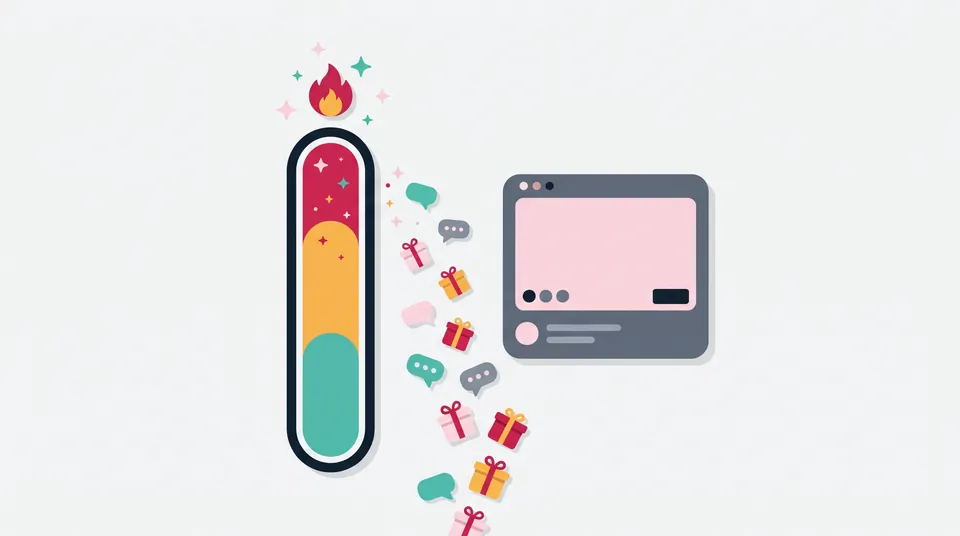
A free hype meter for your stream: it fills on Kick subs, gifted subs and Kicks and on Twitch subs and bits, climbs levels while a countdown runs, and logs every peak with a timestamp so you know what to clip. No login or download.
OBS widget and clip log
Build your hype meter
Preview
Sample values only: the preview never counts anything.
In OBS add a Browser source with this URL, width 800 and height 200. Every setting is in the link, so copy it again after a change.
Listening to
No channel yet
This clip log is already listening in another tab of this browser.
The meter appears here when someone subs, gifts or cheers.
- Chat per minute
- –
- Normal per minute
- –
- Hype runs
- 0
- Moments
- 0
Chat activity shows here once you listen
Times in the log count from here, like the timeline of your VOD. You can change it later.
Adds a link to each moment that opens Twitch's Highlighter there.
Clip log
Everything runs in your browser and in OBS: no login, no token. Your settings are kept in the OBS link and in this browser, and the clip log stays in this browser until you start a new stream.
How to add the hype meter to OBS
- Enter your Kick channel, your Twitch channel or both, pick a channel size and select Play a sample run to check the look.
- Select Copy. In OBS Studio, add a Browser source, paste the link as the URL and set the width to 800 and the height to 200. The meter scales with the width.
- Before you go live, open Live clip log here, select Start listening and set the time your stream started. Keep this tab open while you stream.
- Press M or Mark this moment when something happens that the meter can't see.
- After the stream, paste your Twitch VOD link for Highlighter links, or copy the list or download it as a CSV for whoever edits your clips.
Leave Shutdown source when not visible off in the Browser source, so the meter keeps counting while it is hidden.
Advertisement
How the meter fills
The first contribution starts the meter at level 1 and starts the countdown. Each level needs the points you set, for example 25, 40 and 55 points for the first three levels on Medium, every contribution starts the countdown again, and when it reaches zero the meter shows your end text for 8 seconds and hides again, or stays as an empty bar if you chose that.
The meter also remembers the highest level of your hype runs. When a later run beats it, the level-up says New record and the clip log marks it, so the best moment of the stream is easy to find. A new stream in the clip log keeps the record, and you can turn the celebration off under Look.
| Contribution | Points by default |
|---|---|
| Twitch sub or resub, Tier 1 or Prime | 5 |
| Twitch sub, Tier 2 or Tier 3 | 10 or 25 |
| Twitch gifted sub | The points of its tier, once per sub |
| Twitch bits | 1 per 100 bits |
| Kick sub or renewal | 5 |
| Kick gifted sub | 5 per sub |
| Kicks | 1 per 100 Kicks |
| Chat above normal (chat fuel) | Off, or 0.5, 1 or 2 per extra chatter |
A mass gift on Twitch first announces the number of subs and then sends each gifted sub on its own. Only the single subs add points, so a gift of 20 subs counts 20 times, not 40.
Chat fuel counts, every 10 seconds, how many different people chatted, so someone spamming counts once. After about three minutes of listening the meter knows your normal: the median of the five minutes before the last minute. Chatters above 1.5 times that normal, and above at least 2, add points. Chatters in your ignore list, such as bots, never count.
The clip log
While the Live clip log tab listens, it runs the same meter as your overlay and writes down the moments worth a clip:
- Level-ups, with the contribution that pushed the meter over.
- Hype runs: when each one started, how long it lasted, its highest level, its points and its top contributor.
- Chat spikes, when chat over the last minute is 3 times your normal or more. You can set 2 to 10 times.
- Big moments: 5 or more gifted subs at once, or 1,000 bits or Kicks in one go.
- Your markers, from the button or the M key.
Times count from the stream start you set, so they match your VOD, for example 01:12:40. Paste your Twitch VOD link and every moment gets a link that opens it in Twitch's Highlighter, 20 seconds early by default, using the ?t=0h4m06s time format that Twitch's own API uses for stream markers. For Kick, use the times to jump through your VOD.
Replays in OBS at every peak
The overlay can also ask OBS to save a replay at each level-up, chat spike or big moment, so the clip already exists as a file. In OBS, tick Enable Replay Buffer under Settings, Output, and Automatically start replay buffer when streaming under Settings, General. Then open the Browser source and set Page permissions to Basic access to OBS (Save replay buffer, etc.): the default, read access to OBS status information, doesn't allow saving replays. By default the overlay waits 10 seconds after the moment so the reaction is in the replay too (set 0 to 60 under Save after), and it saves at most once every 20 seconds.
What it reads, and what can change
Twitch: the meter joins your chat at wss://irc-ws.chat.twitch.tv:443 as an anonymous, read-only justinfan guest, like a logged-out viewer. It counts sub, resub and gifted sub notices and the bits on cheer messages, and skips messages from other channels in a Shared Chat session. That guest login isn't described in Twitch's chat guide, which covers logins with a token, so Twitch could stop it.
Kick: Kick's official API sends events such as gifted subs and Kicks only to the webhook of a registered app, which needs an access token and a server. So the meter reads Kick's public chat connection, which Kick runs on the service Pusher, the way a viewer's browser does. On 21 November 2026 we checked which events Kick's own website listens to for subs, gifted subs, which arrive in parts for big gifts, and Kicks. This connection is unofficial and has changed before, so if Kick changes it again the Kick status shows can't connect until this page is updated.
Only real events: the meter never adds points on its own. There are no test buttons that count, the preview and its sample run use made-up values that never reach the meter or the log, and follows don't count.
Hype Train is Twitch's own feature: Twitch starts one when a surge of cheers, subs and gifted subs from several people reaches a threshold the streamer sets. This hype meter is a separate overlay that you add yourself.
Sources, checked 21 November 2026: Twitch, Chat and IRC guide (WebSocket address, USERNOTICE for subs, resubs and gifted subs, the bits and source-room-id tags) and Get Stream Markers (Highlighter link with ?t=0h4m06s); Twitch blog, All aboard the Hype Train; Kick Dev, event types and subscribe to events (webhooks with an app or user access token); kick.com's own chat code (which public events carry subs, gifted subs and Kicks); OBS, Browser Source guide (Page permissions, Shutdown source when not visible), obs-browser (saving the replay buffer from a page needs Basic access) and the OBS Studio interface text (Replay Buffer settings).
Your channels and log stay in your browser
You don't log in or share a password or token. The overlay and this page connect straight from your computer to Twitch, to Kick and to Pusher, which carries Kick's chat. Your settings live in the OBS link and in this browser, and the clip log is kept only in this browser, never sent to livecounts.nl. The overlay itself has no ads.
Frequently asked questions
Is this the same as a Twitch Hype Train?
No. Hype Train is Twitch's own feature, which Twitch starts when a surge of cheers, subs and gifted subs from several people reaches the streamer's threshold. This is a separate hype meter that you add to OBS yourself. It works the same way on Kick and Twitch, can combine both channels in one meter and can also fill from chat.
Do I need to log in or connect my account?
No. The meter reads your public chat the way a logged-out viewer does, so you never share a password or token. It can't post in your chat or see anything private.
Why does the clip log need this tab open?
OBS and your browser keep separate storage, so the overlay in OBS can't hand its moments to this page. While this tab listens, it sees the same chat events and writes the log itself. Keep it open on your streaming computer, or turn on the replay option so OBS saves the clips for you.
Can the meter move on a small channel with few subs?
Yes. Pick the Small size and turn on chat fuel. Chat then adds points when more people chat than usual, so a burst of reactions lifts the meter, while normal chatter doesn't keep it running forever.
Can I test the meter before I go live?
Yes. Select Play a sample run under the preview to watch a whole hype run with made-up viewers, from the first sub to the end text, and Open overlay to see your real widget in the browser. The real meter only moves on real subs, gifts, bits, Kicks and chat, so it never shows fake hype on stream. Ask a friend to chat or sub to see it move.
More free tools
Advertisement